SMS for Microsoft Teams: The Fastest Way to Bring Customers and Internal Teams Together
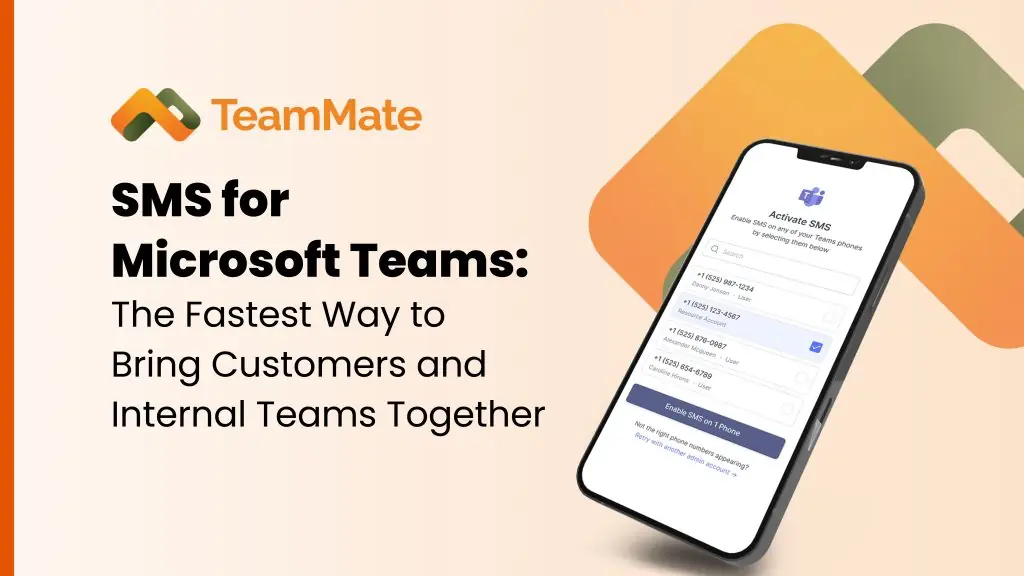
Table of Contents
Microsoft Teams is where your work happens. Channels, chats, meetings, files, decisions, all in one place.
Your customers, though, are living in text messages. They confirm appointments, reply to reminders, ask quick questions, and send photos from the field.
When those two worlds stay separate, you get:
- Conversations stuck on personal phones
- Internal context buried in Teams
- Manual copy and paste between tools
- Uncertainty about who actually replied to the customer
SMS for Microsoft Teams fixes that. It brings customer texts into the same platform your team already lives in, so you can collaborate and respond without losing time or context.
Let’s walk through how it works, why it matters, and what makes TeamMate’s approach a better fit for businesses and service providers.
Why SMS for Microsoft Teams Belongs in Your CX Stack
Customers still respond to SMS faster than almost any other channel. Recent data shows:
- Text messages can see open rates near 98 percent
- Response rates for SMS hover around 45 percent, compared to roughly 6 percent for email
On top of that, the majority of consumers now opt in to receive texts from businesses and expect SMS to be a standard part of service and order updates.
You already know how powerful that is. The problem is not the channel. The problem is the gap between where your team works (Teams) and where your customers respond (text).
When you bring business SMS with Teams into the same workspace:
- Your team answers faster, because they are not switching apps
- Your leaders get visibility into every conversation, not just tickets and emails
- Your customer experience feels consistent, whether someone called, emailed, or texted
That is the promise of SMS for Microsoft Teams, especially when it is done in a way that fits your Teams and carrier strategy.
How SMS in Teams Connects Internal Chat with Customer Conversations

The magic happens when external SMS and internal Teams conversations stop living in separate universes. With a solid Teams SMS integration, a typical flow looks like this:
- A customer texts your published business number.
- That SMS routes directly into the right Teams user, group, or channel.
- Your team replies from Teams.
- Colleagues can see the SMS thread, @mention experts, and add internal notes right next to it.
- The entire history stays in Teams, alongside files, tickets, and call logs.
You get two big wins at once:
- No more “who texted this customer?” moments. The full conversation is visible in Teams.
- No more context loss. Internal and external messages sit together, so no one needs to rebuild the story before answering.
In other words, text messaging in Microsoft Teams stops being an afterthought and starts acting like the rest of your collaboration stack.

SMS in Teams for Internal Communication
Texting in Teams isn’t only for customers. It also closes gaps in how your own people stay in touch.
Reach people who aren’t in Teams right now
Field technicians, drivers, shift workers and anyone away from a computer may not see a Teams message for hours. A text sent from Teams reaches their phone right away, and their reply comes back into Teams.
Bring text-only colleagues into the conversation
Some employees and contractors don’t have a Teams license. With group texting from Teams, they can take part by SMS instead of being left out or copied on separate email threads.
Keep personal numbers private
Staff text from a business number in Teams, so they don’t have to share their personal mobile numbers with colleagues, customers or partners.
Keep every conversation in one place
Texts sit alongside chats, calls and files in Teams, so the history is searchable and doesn’t disappear into someone’s personal phone.
Make urgent messages stand out
Important updates can get buried among Teams notifications. Sending time-sensitive alerts, such as schedule changes or outages, by text makes sure they’re seen.
Use Cases Where Microsoft Teams SMS Integration Has the Most Positive Impact
The best use cases are the ones that already exist in your day-to-day work.
1) Customer Support
Your support team can:
- Send quick troubleshooting steps, links, or photos
- Confirm that a ticket has been updated or closed
- Ask for simple “yes or no” confirmations to move cases forward
Because SMS lives in Teams, agents can pull in specialists, escalate to a supervisor, or hand off between queues without losing the thread.
2) Sales and Success Teams
Sales and customer success already track deals and renewals in Teams.
With SMS for Microsoft Teams, they can:
- Follow up on quotes or demos with short, timely texts
- Nudge renewals or expansions without swapping tools
- Keep all emails, meetings, and texts visible inside account channels
Leaders get a clearer picture of engagement, and reps get a faster way to keep deals warm.
3) Scheduling and Appointment Reminders
If missed appointments cost your business money, SMS inside Teams is one of the easiest fixes.
Teams can:
- Confirm appointments and send reminders
- Share arrival windows or prep instructions
- Coordinate quick reschedules using text instead of phone tag
All of those messages stay tied to the same channel or user that owns the relationship, so anyone stepping in can see what the customer already received.
4) Dispatch and Field Coordination
Your back office is in Teams. Your field team is on the go. With a solid Teams SMS integration, you can finally connect the two sides:
- Dispatch teams text drivers or technicians from dedicated Teams channels
- Staff in the field reply by SMS, and those replies appear in Teams
- Photos from job sites or deliveries drop directly into the right channel for documentation
You get a more complete picture of what is happening in real time, without asking people to install yet another app.
How TeamMate’s SMS Connector Fits in and Stands Out
Not all SMS for Microsoft Teams options support the same things. Some work in specific countries. Others require specific calling plans. A few are basic bots that can’t hold a real conversation.
TeamMate’s SMS Connector was built to solve all of that, especially if you’re a service provider or an organization managing multiple Teams environments.
Here’s how it works:
- You bring your own SMS-enabled numbers (via gateways like Twilio, Bandwidth, etc.).
- TeamMate maps those numbers to Teams users, groups, or channels—your choice.
- Your team sends and receives SMS messages inside Teams, using the same interface they already know.
- Team conversations, message history, even group SMS, all handled natively in Teams.
From your users’ perspective, it feels native. From your IT or MSP perspective, it respects your existing carrier relationships and your Teams governance model.
Here is how that compares to other text enablement options.
Comparing SMS Options in Microsoft Teams
| Option | How it works in Teams | Numbers and carriers | Branding and ownership | Best fit when… |
| Native Microsoft SMS (Calling Plan) | SMS built into Teams Phone Calling Plan chat | Only with eligible Microsoft Teams Calling Plan numbers in supported regions | Microsoft-branded experience, limited provider control | You are all in on Microsoft Calling Plans in a few regions and do not need other carriers. |
| Standalone SMS web or mobile app | Separate portal or app outside Teams | Uses vendor provided SMS numbers | Branded to the SMS vendor | You just need basic texting and do not mind context switching or separate tools. |
| Simple notification bot | One way or limited two way alerts into a channel | Often tied to a single service or workflow | Bot or integration branding | You only need alerts, not full conversational SMS threads in Teams. |
| TeamMate SMS Connector | Full chat style SMS and MMS inside Teams chats and channels using a Teams app and messaging extensions. | Uses your existing SMS gateways and DIDs across supported providers. | White label ready, so you or your service provider can own the experience. | You want conversational SMS in Teams, control over carriers and numbers, and a solution that fits provider and multi tenant scenarios. |
Each option has its place, but TeamMate is designed for teams and providers that want Teams to be the true hub for internal and customer messaging, without sacrificing control over carriers, branding, or service delivery.
If you’re thinking, “This sounds great, but do I have time to roll it out?” Don’t worry.
Here’s what the rollout looks like when you partner with TeamMate:
- No number porting required. Use the SMS gateways you already have.
- No learning curve. It’s Teams. Your people already know how to use it.
- Easy to administer. Assign numbers, map routing, set roles. You can do it all in minutes.
- Built for scale. Whether you’re supporting one team or hundreds of tenants, the platform flexes with you.
This isn’t just another third-party messaging app. It’s a smarter way to use the tools you already trust. Plus, there are a few ways you can make this even easier on yourself internally.
3 Tips on How to Enable SMS Messages in Microsoft Teams Effectively
Without a little planning upfront, an SMS-enabled Teams platform can get messy fast. Here’s how to roll it out in a way that actually helps your teams move faster, not just adds another stream of messages to chase.
1. Decide who “owns” the text
Ask yourself: Who should be sending and receiving these texts?
- Is it a shared team number (like support, dispatch, or billing)?
- Is it individual reps texting from their own assigned numbers (like account managers or sales)?
- Or a mix of both with clear rules?
There’s no one-size-fits-all answer. Shared numbers make sure nothing slips through the cracks. Individual numbers keep the customer relationship feeling personal. Just make sure everyone knows the plan.
(Otherwise, “Who texted them last?” becomes your team’s new catchphrase.)
2. Route messages to where the actual work happens
If your team handles support tickets in a shared Teams channel, it makes sense for SMS replies to show up there. If dispatch lives in its own group, route incoming texts to that space.
The goal is simple: bring the customer message to the team doing the work without forcing anyone to dig around or flip through five tabs.
That’s the difference between “Yes, we technically have SMS in Teams” and “Wow, this actually makes our jobs easier.”
3. Set some friendly guardrails
Even if your business isn’t in a tightly regulated industry, SMS still comes with expectations—both from customers and carriers.
- Make sure opt-in and opt-out language is in place (this protects you and respects your audience).
- Avoid anything that could be misread or sound sketchy, especially in automated messages.
- Have a clear plan for how to handle sensitive situations or escalations by text.
It doesn’t have to be complicated. Just make sure there’s a shared understanding before messages start flying.
Get Unified Messaging in Your Microsoft Teams Channel, Without All the Stress
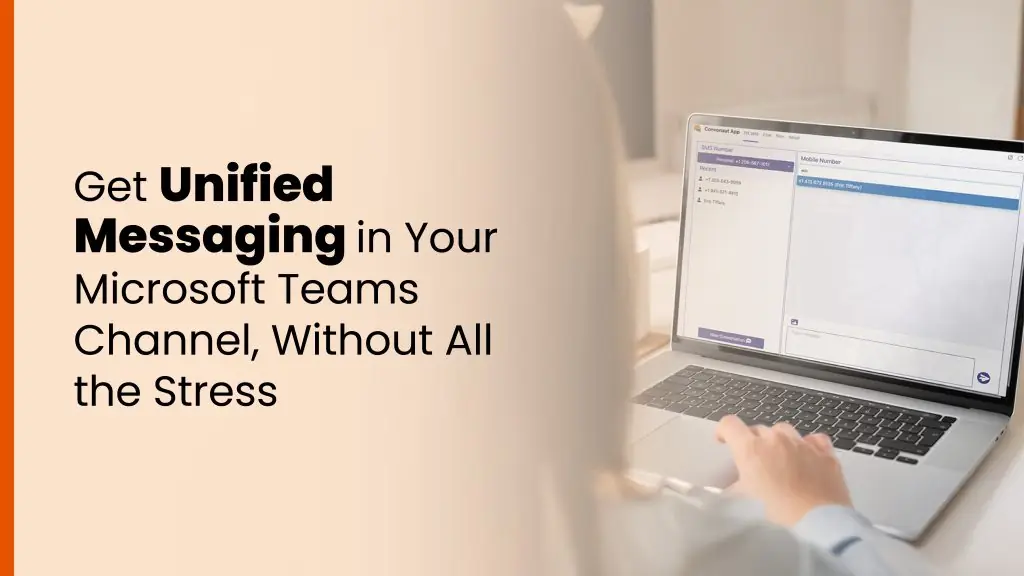
Unified messaging doesn’t have to be a huge transformation project. Sometimes, it’s as simple as connecting the dots between your customer conversations and the platform where work already happens.
With TeamMate’s SMS Connector:
- Your IT and Teams admins have a controllable, auditable way to deliver business SMS with Teams
- Your support, sales, and operations teams have one place to work, instead of juggling half a dozen apps
- Your customers have a simple, consistent experience on the channel they already use every day
It’s a practical, human upgrade to how communication flows.
Ready to see it in action? Schedule your free trial today.

Frequently asked questions
Can you send and receive SMS in Microsoft Teams?
Yes. With a Teams SMS integration, a customer texts your business number, the message routes to the right Teams user, group or channel, and your team replies from Teams. Colleagues can see the thread, @mention experts and add internal notes, and the full history stays in Teams alongside files and call logs.
What are the options for SMS in Microsoft Teams?
Microsoft's native SMS works only with eligible Teams Calling Plan numbers in supported regions. Standalone SMS apps work outside Teams, and notification bots mainly send alerts. TeamMate SMS Connector provides conversational SMS and MMS inside Teams chats and channels, using your existing SMS gateways and numbers, and it is white-label ready.
Do you have to port numbers to use TeamMate SMS Connector?
No. You bring your own SMS-enabled numbers through gateways such as Twilio and Bandwidth, and TeamMate maps them to Teams users, groups or channels. No number porting is required, admins can assign numbers and routing in minutes, and the platform scales from one team to hundreds of tenants.
What is SMS in Teams useful for?
Common uses are customer support, sales follow-ups, appointment confirmations and reminders, and dispatch with field teams. Internally, texting from Teams reaches staff away from a computer, includes colleagues without a Teams license through group texting, and keeps personal mobile numbers private.