“Microsoft Teams and Slack Integration: The Complete Guide for Enterprise (2026)”

Microsoft Teams and Slack Integration: The Complete Guide for Enterprise
If you’ve landed on this page, you’re probably dealing with a familiar headache: part of your organization uses Microsoft Teams, another part uses Slack, and critical conversations are falling through the cracks.
You’re not alone. Industry data consistently shows that more than 60% of Microsoft Teams users also work with at least one other messaging platform regularly. In enterprises with partners, clients, subsidiaries, or recently acquired companies, running both Teams and Slack isn’t the exception — it’s the norm.
This guide covers every option for integrating Microsoft Teams and Slack, from native connectors to enterprise-grade federation platforms. We’ll be honest about what works, what doesn’t, and where each approach fits.
—
Why Teams and Slack Coexist in So Many Organizations
Before diving into solutions, it’s worth understanding why this problem is so persistent.
Different teams adopted different tools. Engineering teams gravitated toward Slack for its developer-friendly integrations and bot ecosystem. Business and operations teams landed on Teams because it was bundled with Microsoft 365. Neither group is wrong — they just optimized for different workflows.
Mergers and acquisitions. When Company A (Teams) acquires Company B (Slack), you can’t flip a switch to standardize. Migration takes months or years. Meanwhile, people need to collaborate.
Partners and clients. Your internal team uses Teams, but your agency partners or key clients use Slack. You can’t force external organizations onto your platform.
Regional and subsidiary differences. Global organizations frequently find that different offices or business units standardized on different platforms years ago.
The result is the same in every case: two platforms running in parallel, with important information trapped on one side or the other.
—
Option 1: Native Microsoft Teams ↔ Slack Connectors
Both Microsoft and Slack offer built-in connectors. Let’s be clear about what they actually do.
The Slack App for Microsoft Teams
Microsoft offers a Slack app within Teams that lets you receive Slack notifications inside Teams channels. It works like this:
– You connect your Slack workspace to a Teams channel via the app.
– When a new message is posted in a specified Slack channel, a notification card appears in Teams.
– You can click the notification to open Slack in your browser.
What it does: One-way notifications from Slack → Teams.
What it doesn’t do:
– Send messages from Teams to Slack
– Support bidirectional conversation
– Map threads or reactions
– Allow users to reply from within Teams
– Support file sharing between platforms
The Microsoft Teams App for Slack
Slack offers a similar connector in the other direction — you can push Teams notifications into Slack channels.
Same limitations: one-way, notification-only, no real conversation.
Verdict on Native Connectors
Native connectors are notification forwarders, not integration solutions. They’re adequate if you just need to know when something was posted on the other platform. They’re not adequate if you need people to actually collaborate across platforms without switching apps.
For most enterprise use cases — M&A, partner collaboration, multi-platform coexistence — native connectors don’t solve the problem.
—
Option 2: Workflow Automation (Zapier, Power Automate, Make)
Platforms like Zapier, Microsoft Power Automate, and Make can create automated workflows between Teams and Slack. A typical setup:
1. Trigger: New message in Slack channel X
2. Action: Post message to Teams channel Y (and vice versa)
This gets you closer to bidirectional messaging, but with significant caveats.
What Works
– Basic text messages can be forwarded in both directions
– You can add filtering logic (only forward messages from certain users, or containing certain keywords)
– Setup is relatively quick for a single channel pair
What Doesn’t Work
– Threading breaks. A reply to a Slack thread becomes a new top-level message in Teams. Conversation context disappears.
– Sender attribution is lost. Every forwarded message appears to come from the bot, not the original sender. (“Zapier Bot: John said…”) This makes conversations hard to follow.
– Reactions and edits don’t sync. If someone reacts to a message or edits it, the other platform doesn’t reflect that.
– File sharing is inconsistent. Attachments may fail, arrive as links, or not transfer at all depending on file size and type.
– Scale is a problem. Each channel pair needs its own workflow. An organization with 50 shared channels needs 100 workflows (50 in each direction), each consuming automation credits.
– Latency. Depending on your plan and platform, messages may take 1-15 minutes to appear on the other side.
– Reliability. Automation workflows fail silently. A broken Zap means messages stop flowing with no notification to users.
When Automation Works
Workflow automation is a reasonable approach if you have:
– A small number of channel pairs (under 5)
– Low message volume
– Tolerance for imperfect threading and attribution
– An automation platform you’re already paying for
– Non-critical communications (status updates, not project collaboration)
For anything beyond that, you’ll hit the limits quickly.
—
Option 3: Enterprise Chat Federation Platforms
Chat federation platforms are purpose-built to solve the Teams-Slack integration problem at the infrastructure level. Instead of forwarding notifications or automating message copies, they create a real-time bridge between platforms where messages, threads, reactions, and files flow natively.
How Federation Works
A federation platform connects to both Teams and Slack via their official APIs (and in some cases, at the protocol level). It acts as a translation layer:
1. User A posts a message in a Teams channel.
2. The federation platform receives the message via the Teams API.
3. It translates the message format and delivers it to the mapped Slack channel via the Slack API.
4. User B sees the message in Slack, with correct sender attribution, as if it were a native Slack message.
5. When User B replies in a thread, the reply flows back to the correct thread in Teams.
This all happens in real time — typically sub-second latency.
What Federation Platforms Handle
– Bidirectional messaging — Full two-way conversation, not just notifications
– Thread mapping — Replies stay in their correct threads on both platforms
– Sender attribution — Messages show who actually sent them, not a generic bot name
– Reactions — Emoji reactions sync across platforms
– File sharing — Attachments are delivered to both sides
– Presence — See whether cross-platform contacts are online, away, or busy
– Edits and deletions — Message edits and deletions propagate to both platforms
– Scale — Bridge dozens or hundreds of channel pairs from a central admin console
Key Players in Chat Federation
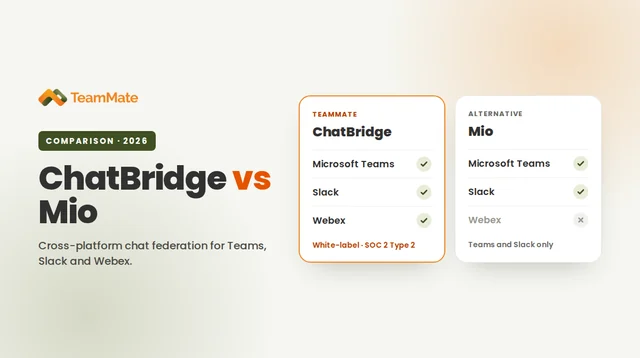
TeamMate ChatBridge — Supports Teams ↔ Slack, Teams ↔ Webex, , and cross-tenant Teams ↔ Teams federation. The only platform that includes Cisco Webex support. Offers white-label deployment for service providers and MSPs. SOC 2 Type 2 certified. Also supports SIP and XMPP protocol translation for legacy UC systems.
Mio — Supports Teams ↔ Slack, Teams ↔ Google Chat, and cross-tenant Teams federation. Google’s official interoperability partner. Does not support Webex. No white-label or service provider model.
NextPlane — Primarily focused on Google Workspace ↔ Microsoft 365 interoperability. Does not support Slack or Webex for chat federation.
Choosing a Federation Platform
The right choice depends on your platform mix and business model:
| If your situation is… | Consider… |
|————————|————-|
| Teams + Slack only | ChatBridge or Mio |
| Teams + Slack, Teams + Webex | ChatBridge (only option) |
| Teams + Google Chat | Mio or NextPlane |
| Cross-tenant Teams federation | ChatBridge or Mio |
| MSP/service provider needing multi-tenant | ChatBridge (only option with white-label) |
| On-premises UC systems involved | ChatBridge (SIP/XMPP support) |
—
Implementation Considerations for IT Leaders
Whichever approach you choose, these are the questions your team should work through before deployment.
Security and Compliance
– Data residency: Where are messages processed? Does the federation platform store message content, or only transit it?
– Encryption: Is data encrypted in transit (TLS) and at rest (if stored)?
– Certifications: Does the vendor hold SOC 2, ISO 27001, or other relevant certifications?
– Audit trails: Can you log who communicated with whom, when, and through which bridge — for compliance and e-discovery?
– DLP integration: Does the platform respect your existing Data Loss Prevention policies on Teams and Slack?
Governance
– Who controls bridge creation? IT should centrally manage which channels are bridged. Uncontrolled bridging creates the same shadow IT problems you’re trying to solve.
– User identity mapping: How are users on Platform A matched to users on Platform B? Is this automatic (email matching) or manual?
– Channel lifecycle: What happens when a bridged channel is archived or deleted on one platform?
Change Management
– User communication: People need to know that their messages in Teams may be visible to Slack users (and vice versa). This isn’t technically complex, but it matters for trust.
– Training: Minimal for federation platforms (users don’t install or learn anything new), but more significant for workflow automation approaches.
Cost
– Workflow automation: Per-automation pricing (Zapier, etc.) scales with the number of channel pairs and message volume. Can become expensive at enterprise scale.
– Federation platforms: Typically per-user or per-organization pricing. More predictable at scale.
– Total cost of ownership: Factor in the IT time spent managing broken automations versus a managed federation platform.
—
Step-by-Step: Deploying Teams-Slack Federation with ChatBridge
Here’s what a typical ChatBridge deployment looks like:
1. Authorize platform connections.
An IT admin authenticates ChatBridge with your Microsoft 365 tenant (Teams) and Slack workspace via OAuth. This requires Teams admin and Slack workspace admin permissions.
2. Map channels.
In the ChatBridge admin console, define which Teams channels should be bridged to which Slack channels. You can create 1:1 mappings (one Teams channel to one Slack channel) or hub-and-spoke configurations.
3. Configure policies.
Set rules for the bridge: which message types to sync (messages, threads, reactions, files), whether to enable presence federation, and any DLP or filtering rules.
4. Test with a pilot group.
Start with a small set of channels — perhaps one cross-functional project team. Verify that messages, threads, reactions, and files flow correctly in both directions.
5. Roll out broadly.
Add additional channel bridges as needed. Users don’t need to install anything or change their behavior. They just see messages from “the other side” appearing naturally in their existing app.
Most organizations go from authorization to live messages in under a day.
—
Common Questions
Can users on Slack see the full history of a Teams channel (and vice versa)?
No — federation is real-time. Messages posted before the bridge was activated stay on their original platform. Only new messages flow across.
What if someone is on both Teams and Slack?
They’ll see the message on both platforms. Most federation platforms handle this gracefully — you won’t see your own messages echoed back.
Does federation replace the need to standardize on one platform?
It can, or it can be a bridge during transition. Some organizations use federation as a permanent solution (different teams genuinely prefer different tools). Others use it to maintain productivity during a planned migration.
What about voice and video?
Chat federation platforms focus on messaging. Voice and video interoperability is a separate (and more complex) challenge. Teams and Slack both support their own calling features independently.
How does this affect our Microsoft 365 or Slack licensing?
Federation platforms use official APIs and don’t require additional platform licenses. Your existing Teams and Slack licenses are sufficient.
—
The Bottom Line
Microsoft Teams and Slack integration is a solved problem — but the solution you choose matters enormously.
Native connectors give you notifications. Workflow automation gives you fragile, limited message forwarding. Chat federation gives you real, bidirectional, real-time collaboration across platforms.
For enterprises dealing with M&A, multi-platform environments, or partner collaboration at scale, a purpose-built federation platform like ChatBridge is the approach that actually works.
—
TeamMate Technology is a Microsoft ISV Partner and SOC 2 Type 2 certified provider. ChatBridge supports federation between Microsoft Teams, Slack, and Cisco Webex. Start a free trial →