For most appointment-based businesses, the call that matters most is the one that ends with "you're booked." When nobody is free to answer, that booking goes to whoever picks up next.
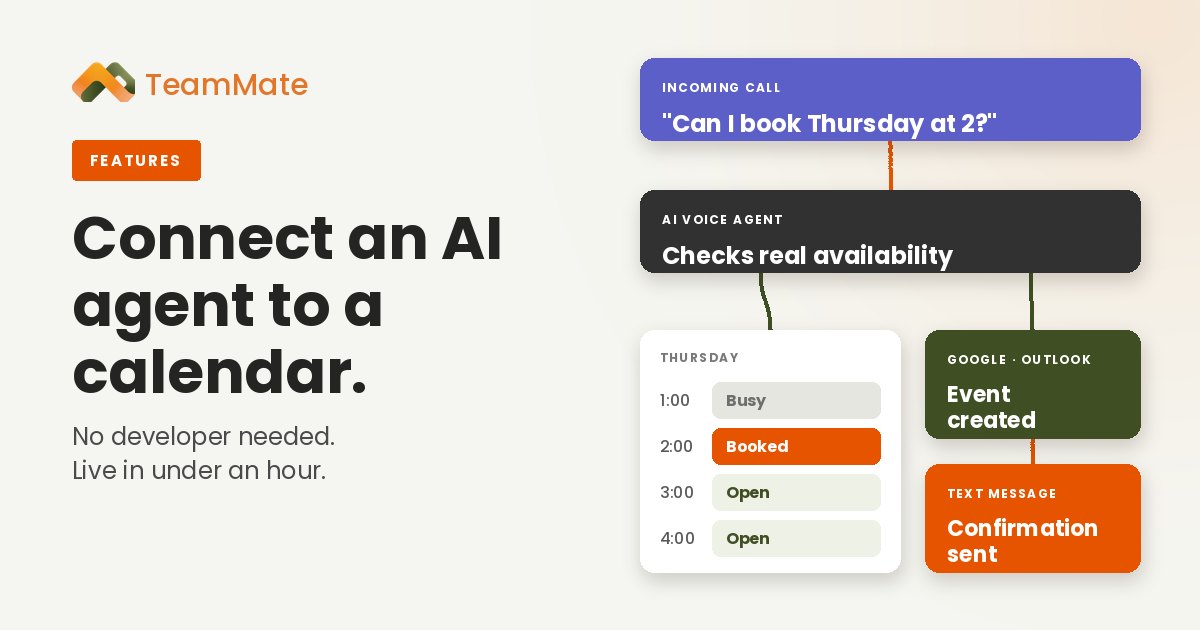
An AI Voice Agent connected to the business calendar closes that gap. It checks real availability, books the slot while the caller is on the line and sends a confirmation before they hang up. Partners can set it up themselves, start to finish, typically in under an hour.
Here's exactly how it works and how to do it.
What happens on a booking call
Once the calendar is connected, a typical call runs like this:
- The caller asks for an appointment. The agent recognizes the request from the conditions you set, such as "when someone asks for an estimate or a consultation."
- The agent checks the calendar in real time. It looks for conflicts and only offers times that are open and inside the availability rules you wrote.
- The caller picks a time. If their first choice is taken, the agent suggests the next opening or asks which day works and offers times on that day.
- The agent reads it back and waits for a yes. "So that's Thursday, October twenty-ninth at two. Shall I book that?"
- The event is created. It lands on the calendar with the title, description and location you defined (an office address or a video link), and invitations can go to extra email addresses, such as the technician or the office manager.
- A confirmation goes out. The agent texts the caller the date, time and address from a pre-approved SMS template, or emails it.
The agent connects to one calendar at a time. That can be a person's own calendar or a shared team calendar, so a front desk can book against everyone's schedule from one place.
Set it up in five steps
Everything below happens in the partner portal. There's no code, and no ticket to TeamMate.
Connect the calendar
Open the agent's Integrations settings and choose Google Calendar or Outlook Calendar. Sign in with the customer's Google or Microsoft 365 account, grant access, and pick the calendar the agent should use. Outlook works with personal and shared Microsoft 365 calendars.
Add the Schedule function
In the agent's Functions, click + and choose Schedule. Then fill in four things:
- Conditions: when the agent should offer to book.
- Email recipients: anyone besides the account owner who should get the invitation.
- Rules: limits on what can be booked, such as weekdays only or no same-day appointments.
- Where: the meeting location, a physical address or a video conference link.
Write the availability rules
Availability is written in plain English in the agent's instructions. Be specific about days, hours and appointment length.
For example:
Appointments can be booked Monday through Friday, 9am to 5pm.
Each appointment is 30 minutes and starts on the hour or half hour.
Do not book same-day appointments. The earliest is tomorrow at 9am.
Collect the caller's full name, mobile number and the reason for the visit.
Read the date and time back and only book after the caller says yes.
If the time is taken, offer the next two open times.
The agent combines these rules with what's already on the calendar to decide what it can offer.
Add a confirmation text
Create an SMS template for the confirmation, for example: "Hi {{caller_name|there}}, you're booked with {{business_name}} on {{appointment_time}}. Reply STOP to opt out." Business details fill in from the organization's settings, and the appointment time comes from what the agent collected on the call. Set the template to Active, then select it in the agent's Send SMS function. Templates also handle opt-out language and quiet hours.
Test it
Call the agent and book a slot, then check that the event appears on the calendar. Then try to book a time you know is taken and confirm the agent offers an alternative. Five minutes of testing catches nearly every setup issue.
When the calendar isn't Google or Outlook
Many businesses schedule in a practice-management system, a field-service platform or a CRM. The agent can still reach it, using the same no-developer approach:
- Webhooks: the agent calls a web address during or after the call and passes details like the caller's number, the call summary and the transcript. Anything that accepts a webhook can receive a booking.
- n8n workflows: an official n8n node lets a workflow start an agent, and the agent can call a workflow mid-call, for example to check availability in another system and write the booking back.
- MCP servers: if the scheduling system offers a Model Context Protocol (MCP) server, connect it and the agent can use its tools directly. Use the agent's instructions to limit which actions it takes.
We've seen partners connect an agent to something as simple as a Google Sheet in about 20 minutes. The agent recognizes callers by caller ID, reads back their next appointment, moves it to a new date and writes the change back to the sheet, then logs every call. No programming, just a copied script and a few settings.
Get the details right
A few habits make the difference between a demo and a dependable agent:
- Confirm before writing. Have the agent read the date back and wait for a yes before it books or changes anything.
- Keep the rules in sync with reality. If the office closes early on Fridays, the instructions need to say so. Most "double-booking" problems are rules that don't match the real schedule.
- Pick the right calendar. Conflict checking only works against the calendar you selected. If events land somewhere unexpected, check the selection and the account permissions first.
- Protect money and changes. Let the agent share appointment times on a caller ID match, but have it confirm something like a ZIP code before discussing balances or moving a booking.
- Charge for paid consultations. For businesses that sell time, the agent can take a card payment before it books.
A quick add-on to sell
For partners, a calendar-connected agent is one of the easiest AI conversations to have. Every business with appointments understands missed calls and empty slots, the value shows up in the first week, and it adds recurring revenue on top of the phone service you already sell. Because you can set it up yourself, you control the timeline and the customer experience.
Service providers can start with a free 30-day proof of concept.
Want to see an agent book a real appointment? Book a demo or explore AI Voice Agents.