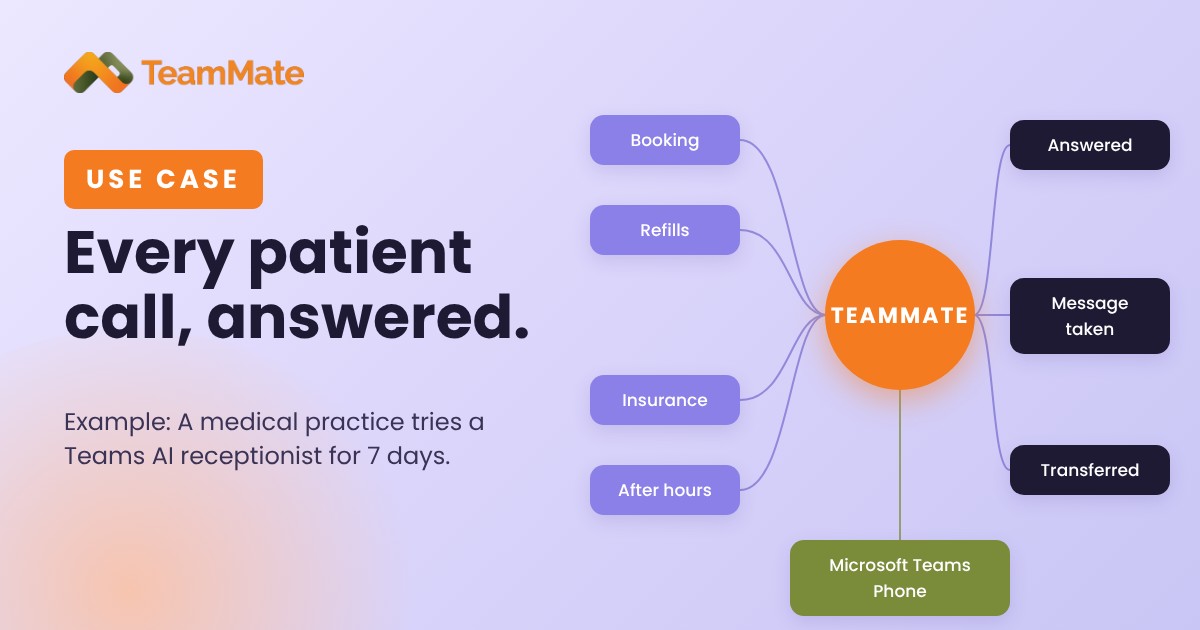
Picture a family medicine practice with four providers, two people at the front desk and one main phone number. The practice already runs on Microsoft Teams, and its phones run on Teams Phone.
Mornings are the hardest part of the day. Patients call to book, reschedule, ask about refills and check which insurance plans the office takes, all while the front desk is checking people in. Calls ring out. Some go to voicemail. Many patients just hang up and call another practice.
This use case walks through how the practice's IT partner put the TeamMate AI Receptionist Agent on the main line with a free 7-day trial, and what the practice learned by the end of the week.
The problem: the phone never stops
The front desk team is good at their jobs. They just can't be in two places at once.
- Peak hours collide. The busiest call times (opening, lunch and late afternoon) are also the busiest check-in times.
- Voicemail piles up. Messages wait until someone has a gap, so patients get a call back hours later, if at all.
- After-hours calls go nowhere. Callers hear the office hours and a click.
- Hiring isn't the answer. Another front desk hire adds a salary and still doesn't cover lunch breaks, sick days or evenings.
The practice manager wanted every call answered, without adding staff or another phone system.
The fix: a free trial, live the same morning
The practice's IT partner suggested an AI voice agent that works inside native Microsoft Teams, and started the free 7-day trial. There was no credit card to enter and nothing to install on any computer.
What they needed
- A Microsoft 365 Global Admin account (a regular user account won't work)
- A Teams Phone license for the agent's user (Teams Phone Standard, or a plan that includes it such as E5)
- The practice's existing main number, which runs on a Microsoft Calling Plan
Setup in about 15 minutes
- Signed up with the practice's name, phone and business type (medical office).
- Confirmed the email link.
- Signed in as the Global Admin and approved TeamMate's apps.
- Waited a few minutes while TeamMate finished the setup.
- Created a user for the agent and chose the call routing type.
- Called the number once the page said "Your AI receptionist is live."
How calls reached the agent
Because the practice uses a Calling Plan, its main number stayed exactly where it was. The IT partner forwarded calls to the agent through Teams admin settings. Operator Connect works the same way. Practices on Direct Routing can instead give the agent an unassigned number that patients dial directly. TeamMate has a short guide on how calls reach your agent.
The week: tuning the agent
Choosing "medical office" at sign-up gave the agent a sensible set of starting instructions. From there, the practice manager shaped it in the TeamMate portal over the week.
- Day 1: The greeting. The agent answered with the practice's name and a warm, short welcome.
- Days 2 and 3: The knowledge base. Office hours, both locations, parking, insurance plans accepted, new-patient steps and how refill requests work.
- Days 4 and 5: Transfer rules. With Transfer Enabled turned on, scheduling calls went to the front desk, clinical questions went to the nurse line and billing questions went to the billing office.
- Day 6: A check-in. A TeamMate specialist reached out to review what was working and what to adjust.
- Day 7: The decision. The practice had a full week of real calls to judge it on.
Two rules were set from day one. Callers with a medical emergency are told to hang up and dial 911. And the agent never gives medical advice: it answers office questions, takes messages and routes calls to people.
The result: every call answered
By the end of the week, the phone worked the way the practice manager wanted.
- Every call answered on the first ring, with the practice's name, including at lunch and after hours.
- Routine questions handled (hours, directions, insurance) without pulling anyone away from patients.
- Clear messages with the caller's name, number and reason, ready for a call back.
- Urgent calls transferred to a real person right away.
- A calmer front desk, focused on the patients standing in front of them.
When the trial ended, the agent's settings were kept, so moving to a paid plan meant no rebuild. The practice kept the agent.
What IT leaders and MSPs should take from this
- A one-week test costs nothing. No card, no install and no change to the phone system.
- It works with the Teams Phone setup you already have, whether that's Direct Routing, Operator Connect or Calling Plans.
- It's a fast win to bring to clients. MSPs can run the trial for one client and show results within a week. Service providers can also start a free 30-day proof of concept.
Try it in your practice
If your phones ring more than your team can answer, give the agent a week. Start your free 7-day trial and have it answering calls in about 15 minutes.
Prefer to talk it through first? Book a demo and we'll show you how it fits your Microsoft Teams setup.