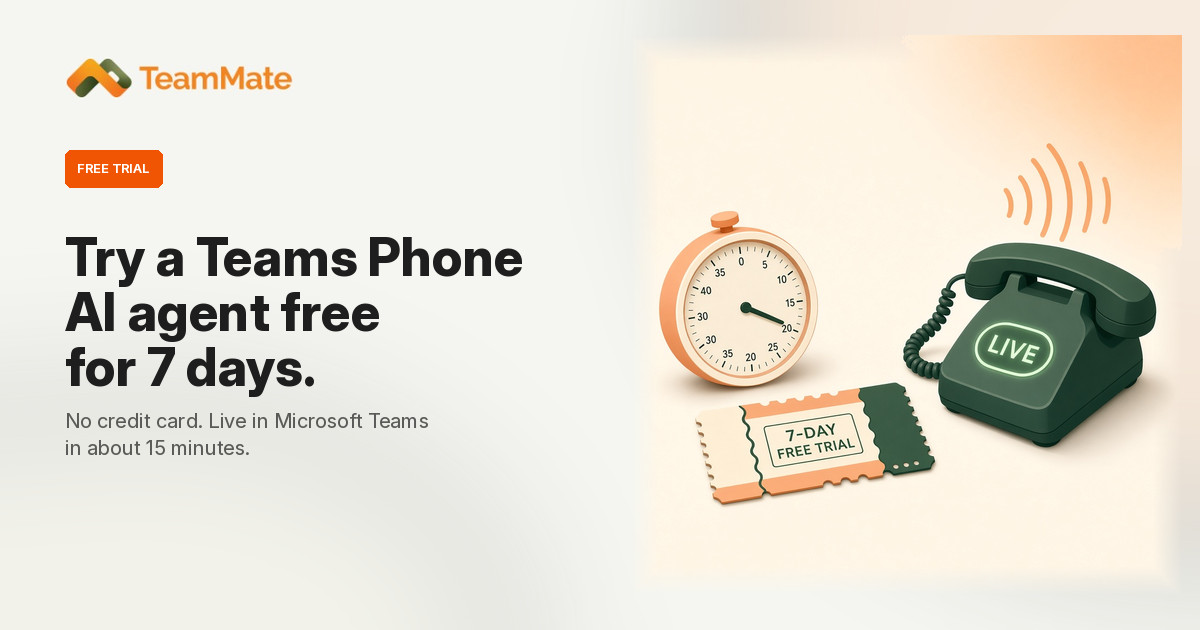
Anyone can now start a free 7-day trial of a TeamMate AI receptionist on Microsoft Teams. There is no credit card, and the agent can be live in your organization in about 15 minutes. Sign up on the TeamMate website, confirm your email, and a Microsoft 365 Global Admin connects it to Teams.
The AI receptionist answers a Teams phone number with your business name, takes messages and transfers callers to your team. You can change what it says and what it knows during the trial, and a TeamMate specialist checks in before the seven days are up.
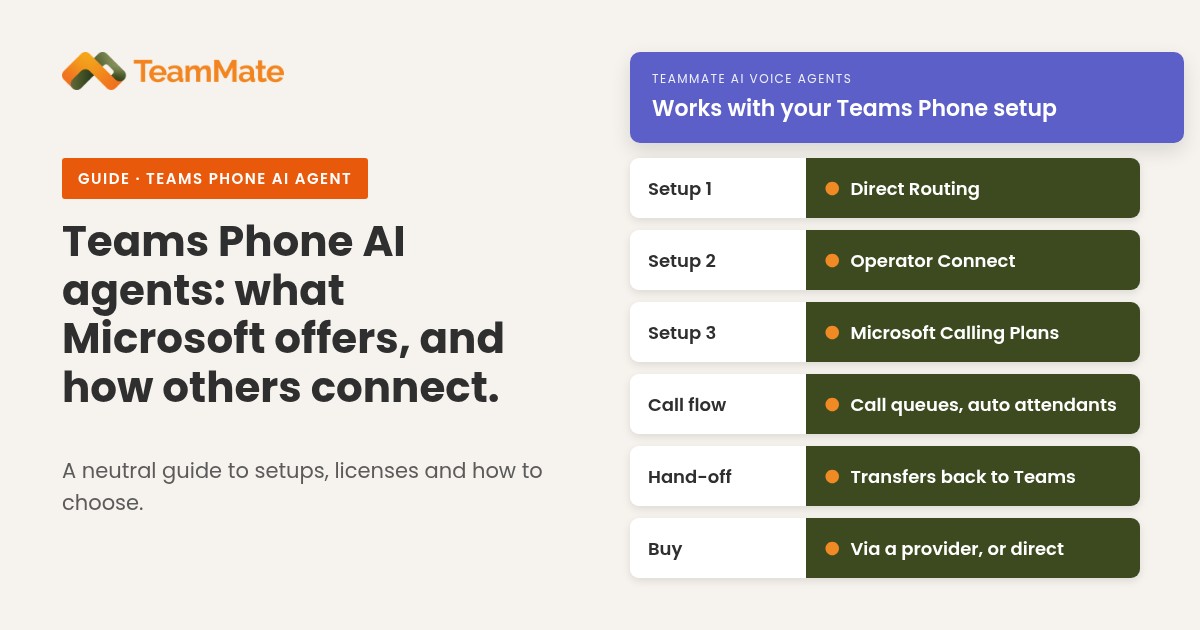
It works with Direct Routing, Operator Connect and Microsoft Calling Plans. For a fuller picture of the product, see AI Receptionist for Microsoft Teams Phone and AI Voice Agents. This post is the walkthrough for the trial itself.
What you'll need
Have these ready so you can finish in one sitting:
- A Microsoft 365 Global Admin. The person who signs in to connect TeamMate must be a Global Admin of your organization. A regular user account won't work.
- A Teams Phone license for the agent's user (Teams Phone Standard, or a plan that includes it, such as Microsoft 365 E5).
- If you use Direct Routing: an unassigned Direct Routing number. That becomes the number callers dial to reach the agent.
- If you use a Microsoft Calling Plan or Operator Connect: a number you already have. After setup, you forward its calls to the agent inside Teams.
You don't need a credit card, and nothing is installed on anyone's computer. The trial is available in any country; the signup form accepts a country code for your phone number.
Not sure how calls reach Teams today? In the Teams admin center, open Voice > Phone numbers and look at the Number type column. It shows Direct Routing, Calling Plan or Operator Connect. How calls reach your agent explains the difference.
How to set it up
The trial runs on one web page: teammatetechnology.com/ai-agent-trial/teams. Your progress is saved after every step, so you can close the page and come back. Watch the setup, then follow the steps below.
1. Sign up
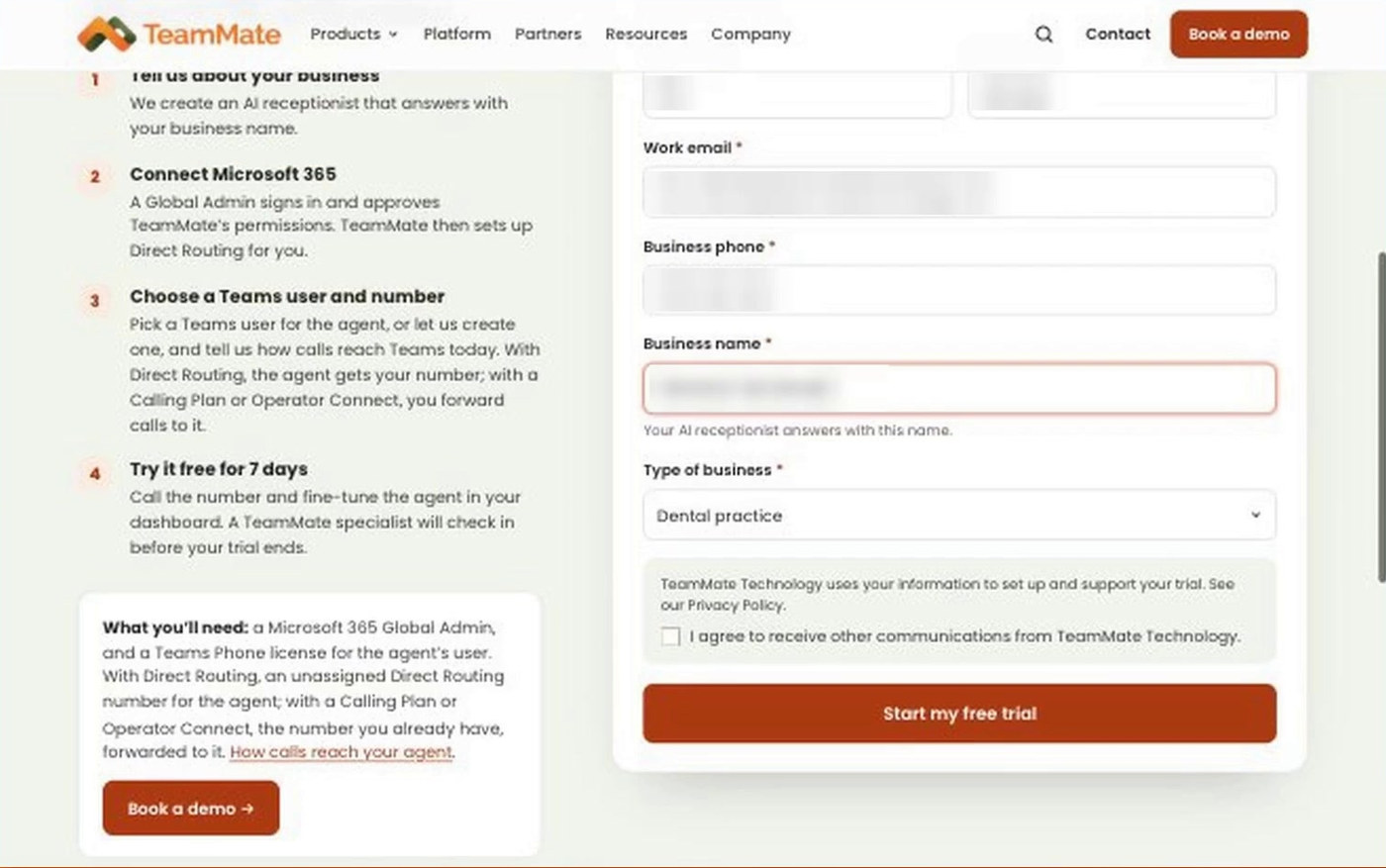
Fill in the form under Start your free trial, then click Start my free trial.
- First name, last name and work email. TeamMate sends the confirmation link to this address, so use one you can open now.
- Business phone. A number where a TeamMate specialist can reach you during the trial.
- Business name. Your AI receptionist answers calls with this name, for example "Thank you for calling Contoso Dental."
- Type of business. TeamMate starts the agent with instructions suited to your kind of business. You can change them later.
Signing up again with the same email address reopens the same trial, so you can't accidentally start two.
2. Confirm your email
The page asks you to check your email. Open the message and use the link to confirm your address. If it doesn't arrive, look in spam or junk.
The confirmation link works for 24 hours. It opens your trial at the next step. Keep using that link, or the same browser, to come back later.
3. Connect your Microsoft 365 organization
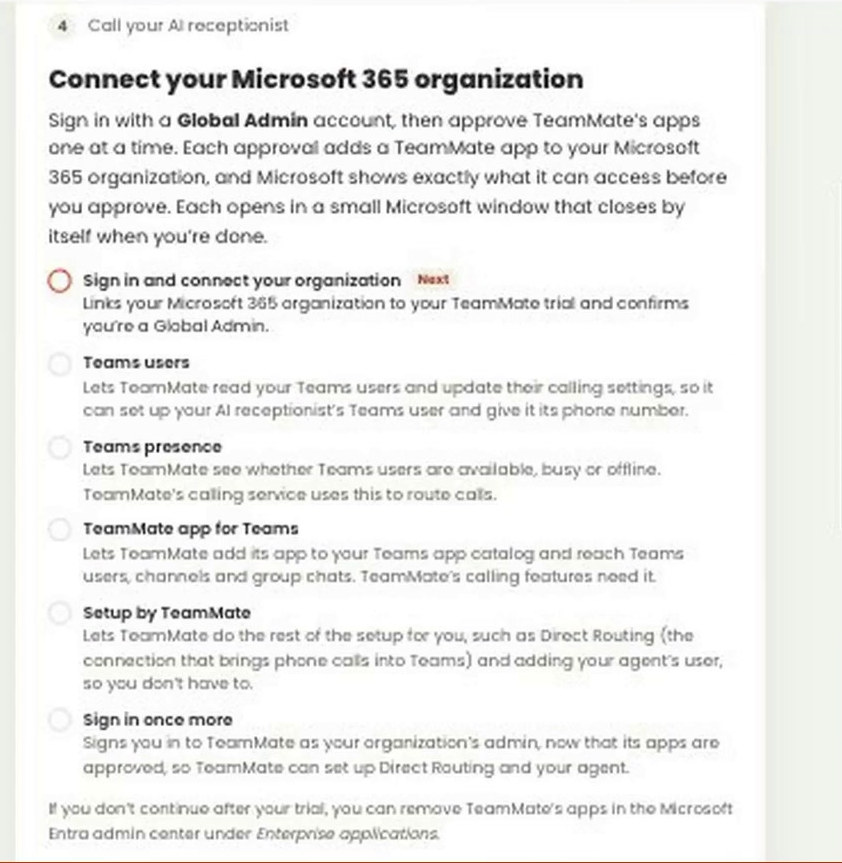
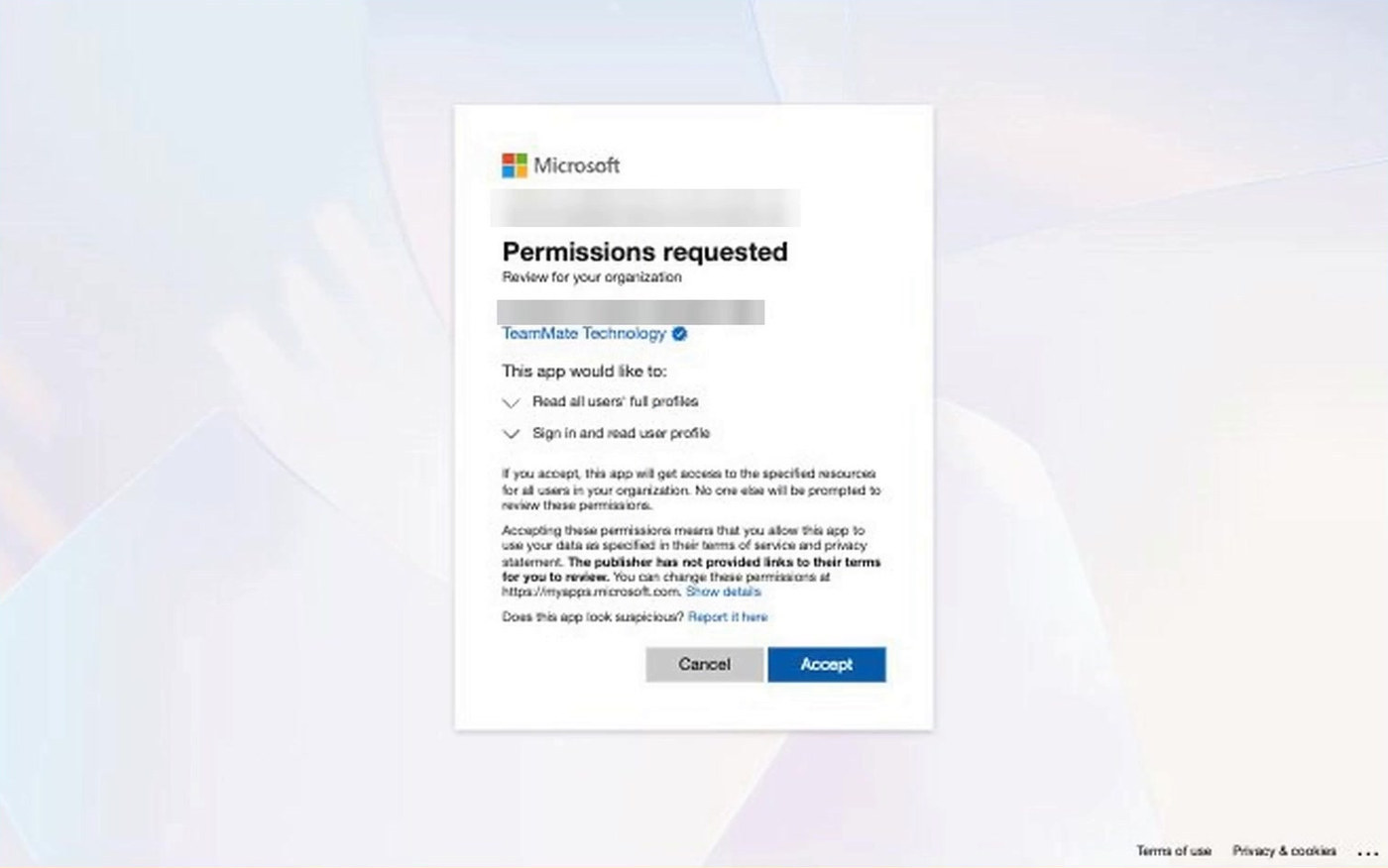
Sign in with a Global Admin account (the button is Sign in with Microsoft), then approve TeamMate's apps one at a time. Microsoft shows exactly what each app can access before you approve it, and each window closes by itself when you're done. When all the apps are approved, sign in once more as your organization's admin.
If you don't continue after the trial, you can remove TeamMate's apps in the Microsoft Entra admin center under Enterprise applications.
4. Wait while TeamMate connects to Teams calling
TeamMate sets up Direct Routing in your organization automatically, so calls can reach the AI receptionist. This usually takes a few minutes. There's nothing for you to do. You can leave the page open, or close it and come back with your email link.
5. Choose the agent's Teams user and number
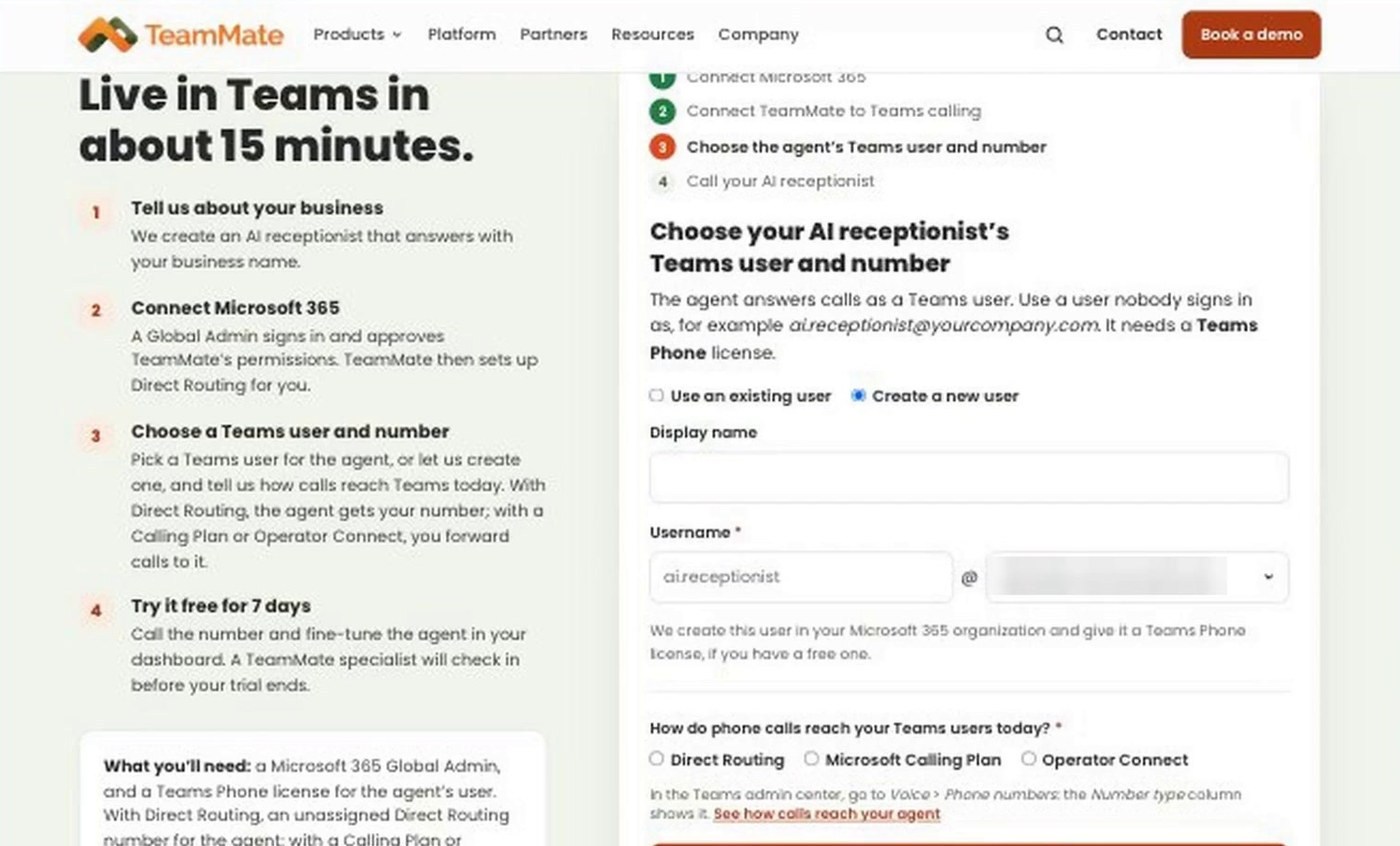
The agent answers calls as a Teams user in your organization. Nobody signs in as that user. You can use an existing user that nobody signs in as, or create a new one (display name and username). TeamMate creates the user if you choose that option, and gives it a Teams Phone license if you have a free one.
Then answer How do phone calls reach your Teams users today?: Direct Routing, Microsoft Calling Plan or Operator Connect.
- With Direct Routing, enter the Phone number callers will dial — a Direct Routing number in your Teams organization that isn't assigned to anyone. You can paste it from the Teams admin center. TeamMate assigns it to the agent, and callers dial it directly.
- With a Calling Plan or Operator Connect, your number stays where it is. After the agent is ready, you forward that number's calls to it inside Teams.
Click Create my AI receptionist. The page waits a minute or two for Teams to see the new user, then continues by itself. You can close the page; TeamMate will email you when the agent is ready to take calls.
6. Call your AI receptionist
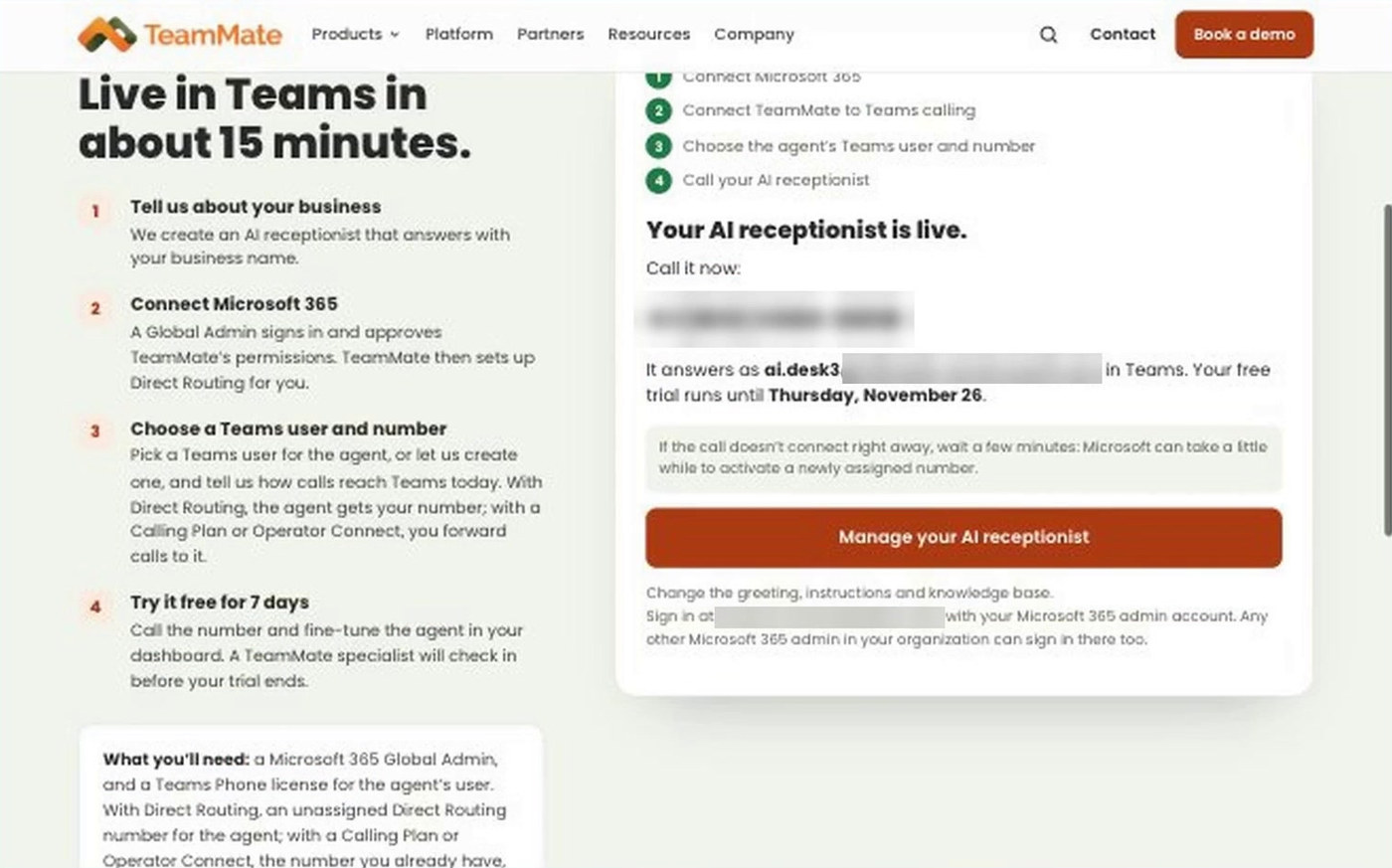
When the page says Your AI receptionist is live, it shows the number to call and the date your trial ends. Call the number. If you're on a Calling Plan or Operator Connect, you can also call the agent's Teams user from your own account in Teams before you forward anything.
If the call doesn't connect right away, wait a few minutes and try again. Microsoft can take a while to activate a newly assigned number.
The trial runs for 7 days.
After you're live
Use Manage your AI receptionist on the final screen, or the link in your setup email, to open the TeamMate portal. Sign in with your Microsoft 365 admin account. Any other Microsoft 365 admin in your organization can sign in there too. In the portal you can:
- Change the greeting callers hear.
- Edit the instructions: what the AI receptionist should ask, when to take a message and who to transfer callers to.
- Add to its knowledge base, such as your hours, services, prices and frequently asked questions.
After a change, call it again to hear the difference.
Set up call transfers
Transfer rules tell the AI receptionist when to put a caller through to someone on your team. You set them in the TeamMate portal:
- Open the Users tab. On the agent's user, open the Actions menu and choose Edit Agent.
- Open the Advanced Settings tab. In Transfer Rules, write one rule per line, in this form:
If the caller wants to speak to <name>, transfer the call to <email address>.The email address is the one that person uses to sign in to Teams. - Turn on Transfer Enabled. Transfers don't work while it's off, even if you've written rules.
- Click Save Changes.
For example: If the caller wants to speak to Alex, transfer the call to [email protected]. Add a line for each person callers might ask for, then test by calling the agent and asking for one of them.
Send your calls to it (Calling Plan or Operator Connect)
If you use Direct Routing, callers already dial the agent's own number, so there's nothing to forward.
If you use a Calling Plan or Operator Connect, your number keeps working as it does today. You forward its calls to the AI receptionist inside Teams. Choose one:
- From the person who has your number. In the Teams admin center, open Users > Manage users, choose that person, then Voice > Call answering rules. Forward all calls to the agent, or only unanswered calls so it picks up when nobody does. The person can also set this in the Teams app under Settings > Calls.
- From an auto attendant you already have. Open Voice > Auto attendants, choose it, and add the agent as a menu option, the operator or the after-hours destination.
- From a new auto attendant. Create one that sends every call to the agent, and give its resource account your number.
How calls reach your agent walks through each path.
When the trial ends
After 7 days the AI receptionist stops answering calls, and TeamMate emails you that the trial has ended. Its settings, greeting, instructions and knowledge base are kept, so if you continue it picks up where it left off. You can continue on your own (self-service), or talk to your TeamMate specialist.
If you decide not to continue, email [email protected]. We're happy to help you remove the trial from your organization.
A TeamMate specialist will also contact you during the trial. For anything sooner, use the same support address.
Who it's for
The trial is for businesses that want an AI receptionist on their own Microsoft Teams Phone setup, and you can start it yourself on the website. TeamMate AI Voice Agents also work for service providers who want to offer the same capability to their customers; see AI Voice Agents and The AI Receptionist Features Your Customers Will Pay For. For how Teams Phone AI agents work, including Microsoft's own option, read Teams Phone AI Agents: What Microsoft Offers and How Other Agents Connect.
TeamMate AI Voice Agents can sit behind call queues and auto attendants and transfer back to Teams, book appointments, and speak 40+ languages, with under 300 ms response time. More than 1,000 agents are already running. The platform is SOC 2 Type 2 certified and runs 100% on Microsoft Azure in 9 regions.
Frequently asked questions
How do I start a free trial of a TeamMate AI receptionist? Go to teammatetechnology.com/ai-agent-trial/teams, fill in the form and confirm your email. There is no credit card. A Microsoft 365 Global Admin then connects TeamMate to your organization.
What do I need for the trial? A Microsoft 365 Global Admin, and a Teams Phone license for the agent's user. With Direct Routing, you also need an unassigned Direct Routing number. With a Microsoft Calling Plan or Operator Connect, you use a number you already have and forward its calls to the agent after setup.
How long does setup take? The trial is set up so the agent can be live in Teams in about 15 minutes. Connecting to Teams calling usually takes a few minutes, and the page then waits a minute or two for Teams to see a new user. If a newly assigned number doesn't ring right away, wait a few minutes and try again.
Does the trial work with Direct Routing, Calling Plans and Operator Connect? Yes. TeamMate AI Voice Agents work with Direct Routing, Operator Connect and Microsoft Calling Plans. In the trial, you say how calls reach Teams today. With Direct Routing, the agent gets an unassigned number of yours. With a Calling Plan or Operator Connect, you keep your number and forward its calls to the agent.
What can I change during the trial? In the TeamMate portal — from the Manage your AI receptionist button on the final screen, or the link in your setup email — you can change the greeting, instructions and knowledge base, and set up call transfers to people on your team.
What happens when the 7 days end? The AI receptionist stops answering calls. Its settings are kept, so if you continue it picks up where it left off. You can continue on your own (self-service), or talk to your TeamMate specialist. If you don't continue, email [email protected] and we'll help you remove the trial from your organization.
Is the trial available outside the US? Yes. The trial is available in any country. The signup form accepts a country code for your phone number.
Start the trial
The trial is open now, to anyone, on the TeamMate website. Start your free 7-day trial.